
How to Crop GIFs Online
Trim GIF edges, focus on specific areas, and reduce file size with a free online GIF cropper.
Published on: Jan 27, 2026
Why Crop GIFs?
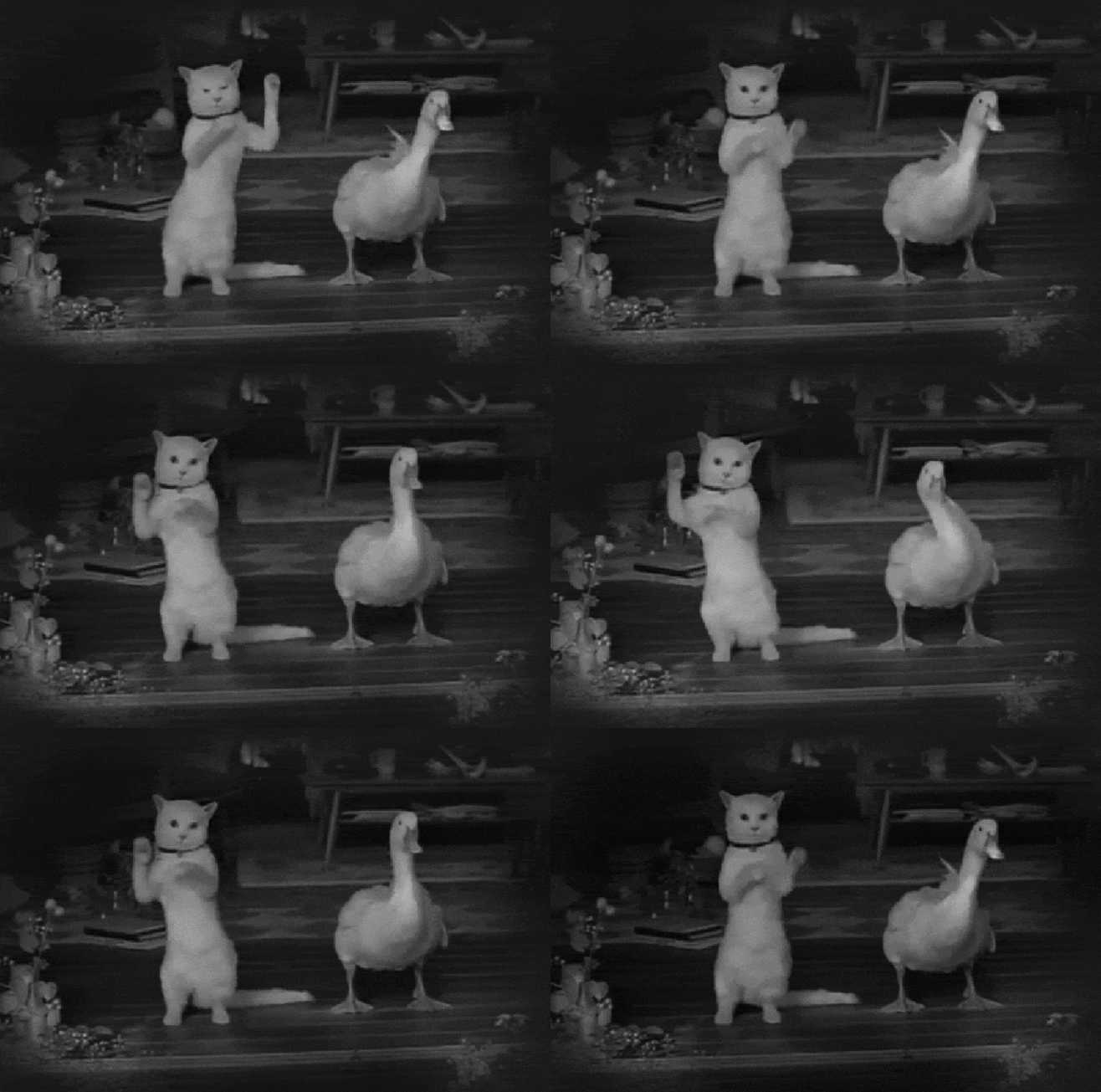
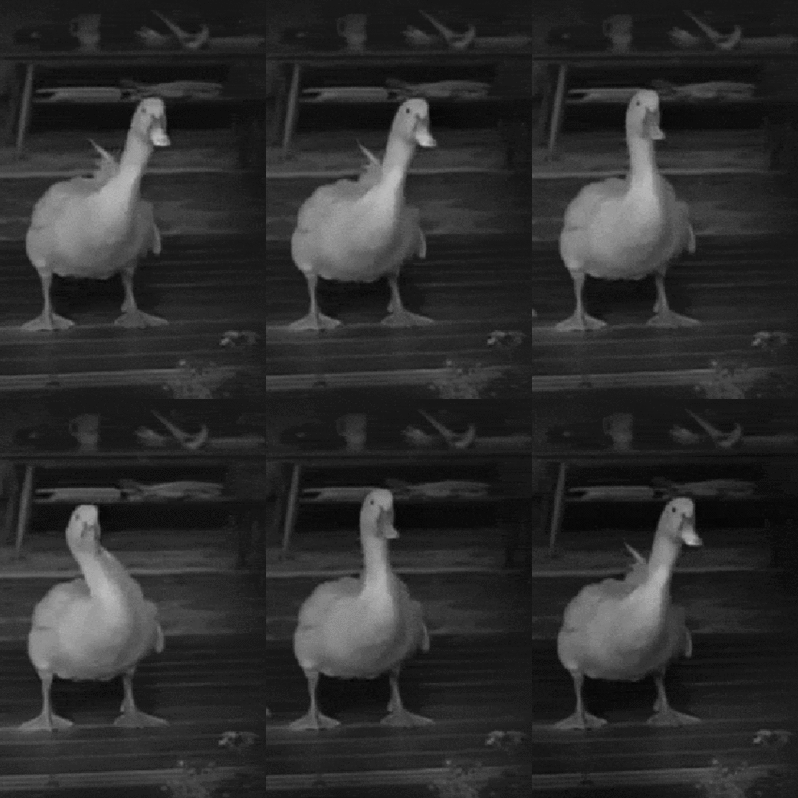
Cropping GIFs helps you remove unwanted edges, focus on the important part of the animation, and often reduces file size. A smaller GIF loads faster on websites and social media.
Try the GIF Cropper now.
Open GIF CropperKey Features
- Animated preview so you can see the full GIF before cropping.
- Drag to select the area you want to keep.
- Maintains quality - cropped GIFs keep the same animation quality.
- Browser-based - all processing happens locally, no uploads to servers.
- Instant download - get your cropped GIF immediately.
Step-by-Step: Crop a GIF
Step 1: Upload Your GIF
Drag and drop your animated GIF file or click to select. The tool supports standard animated GIF format.
Step 2: Preview the Animation
Watch the GIF play in the preview area. This helps you decide which area to keep.
Step 3: Select the Crop Area
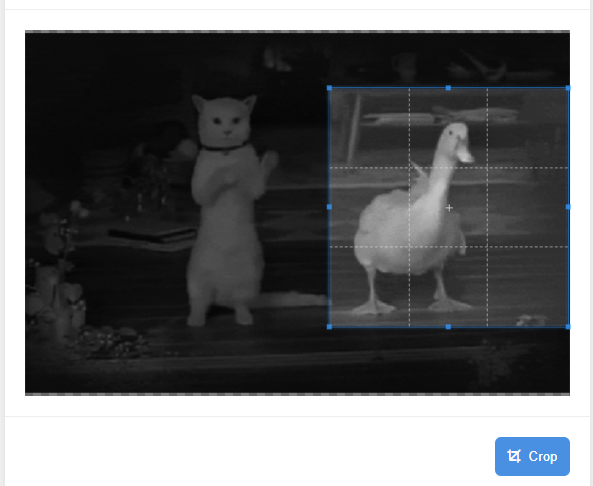
Drag to select the rectangular area you want to keep. You can adjust the selection box to frame the perfect area.
Step 4: Crop and Download
Click Crop to process the animation. The cropped GIF maintains all frames and animation quality. Download when ready.
Tip: Cropping removes pixels from the edges, which can reduce file size. Smaller GIFs load faster on social media and websites.
Best Practices
- Crop tightly around the main subject to reduce file size.
- Keep important action in the center of the crop area.
- Test different crop sizes to balance file size and composition.
- Use cropping to remove watermarks or unwanted borders.
Conclusion
Cropping GIFs online is quick and easy. Upload, select your area, crop, and download a smaller, focused animation.
Crop your first GIF now.
Crop a GIF