
How to Add Text to GIF Online
Add custom text overlays to animated GIFs with a free online tool.
Published on: Jan 27, 2026
Why Add Text to GIFs?
Adding text to GIFs turns simple animations into memes, reactions, or captioned content. With an online GIF text tool, you can customize fonts, colors, and position without installing software.
Start adding text to your GIFs.
Open Add Text to GIFKey Features
- Custom fonts including Arial, Impact, Comic Sans, and more.
- Adjustable text size from 10px to 72px.
- Text color and opacity for perfect visibility.
- Text outline with customizable color and width for readability.
- Drag to position text anywhere on the GIF.
- Real-time preview before generating the final GIF.
Step-by-Step: Add Text to a GIF
Step 1: Upload Your GIF
Drag and drop your GIF file or click to select. Maximum file size is 20MB.
Step 2: Enter Your Text
Type the text you want to add in the input field. Keep it short for best results.
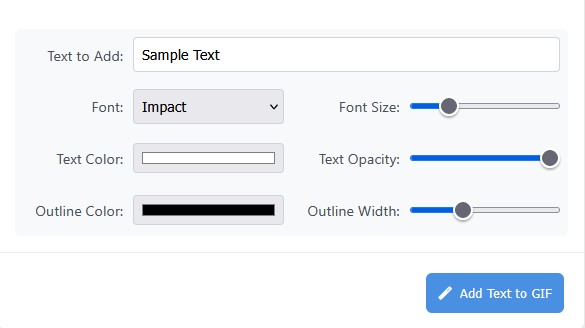
Step 3: Customize Text Style
Choose a font, set the size, pick a color, and adjust opacity. Add an outline for better readability on busy backgrounds.
Step 4: Position the Text
Drag the text preview on the GIF to place it where you want. The text appears on all frames of the animation.
Step 5: Generate and Download
Click Add Text to GIF to process the animation. When finished, download your customized GIF.
Tip: Use a dark outline on light text (or light outline on dark text) to make text readable on any background.
Best Practices
- Keep text short and punchy for memes and reactions.
- Use high contrast colors so text stands out.
- Position text away from busy areas of the animation.
- Test different font sizes to find the right balance.
Conclusion
Adding text to GIFs is simple with the right tool. Upload, customize, position, and download your personalized animated GIF in minutes.
Create your first text GIF now.
Add Text to GIF