
How to Merge Two Photos & Put Images Side by Side – Image Fusion, Side by Side Photos & Simple Photo Collage
Published on:
You want a single picture that tells a story in two halves: a portrait next to a landscape, a “before” and “after”, a real photo beside a stylised version, or two product angles in one frame. In everyday language people search for how to put two images side by side, side by side photo layouts, or a quick photo collage with only two panels. In imaging terms, that is a form of image fusion at the layout level: two sources become one composite with a shared edge.
ROCKIMG's free Merge Two Photos tool does exactly that in the browser. You upload a left image and a right image, set where the seam should sit, and export one PNG — no desktop app and no upload to a server (processing stays on your device).
Open the tool and try a side by side merge in under a minute.
Open Merge Two PhotosWhat “Image Fusion” Means Here (and What It Does Not)
Image fusion can mean several different things. In scientific or HDR workflows it often implies pixel-level blending (for example merging exposures). This article uses the term in the broader sense many creators use when they Google it: combining two images into one meaningful composite.
ROCKIMG's Merge Two Photos tool performs a horizontal fusion with an adjustable split:
- Both photos are scaled so their heights match (using the shorter image's height as the common canvas height).
- A split percentage (10%–90%) decides how much horizontal width comes from the left image versus the right image.
- The result is a single wide image: a classic side by side photo or two-cell photo collage layout.
- A subtle vertical guide line is drawn on the seam so you can see exactly where the two halves meet (useful for alignment and social crops).
If you need stacked grids, many tiles, or overlapping layers with transparency, other workflows (or ROCKIMG's Images Combine / Image Overlay tools) may fit better — more on that below.
Why Create a Side by Side Photo or Two-Panel Collage?
Putting two images side by side is one of the most universal layouts on the web. It works because viewers compare left and right automatically.
- Before / after — fitness, renovations, skincare, cleaning, training progress.
- Comparisons — two products, two colourways, two maps, two charts as still images.
- Storytelling — “expectation vs reality”, meme formats, reaction pairs.
- Art and photography — diptychs, paired portraits, “photo vs illustration” experiments.
- Social and messaging — one file to post or send instead of two attachments.
A two-panel photo collage is often enough; you do not always need a full multi-cell template app.
What the Merge Two Photos Tool Gives You
Here is a concise map of the features you actually get on the page:
Clear placement for image A and image B — drag and drop or click to pick files.
Move the seam between 10% and 90% to favour more of the left or right picture.
Both images scale to the same height so the seam is a straight vertical line.
Download a single PNG named merged-photo.png after you click Create.
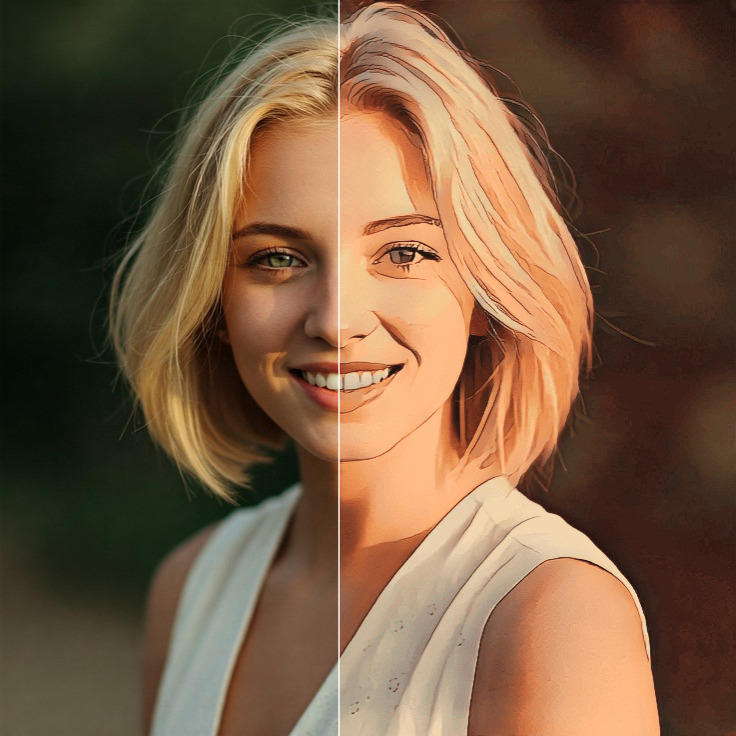
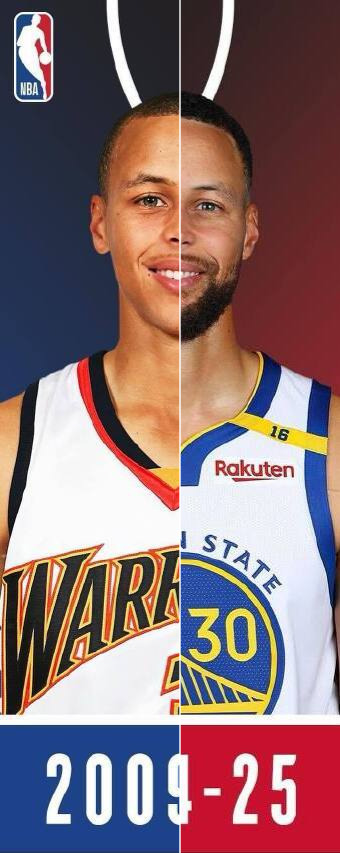
Try bundled examples (e.g. stylised blends and before/after style pairs) with one click.
Images are handled in your browser; they are not sent to ROCKIMG for merging.
Example side by side results (tool samples)
These are the same style of outputs you can produce with the Merge Two Photos workshop — a real image paired with a stylised or alternate version, and a classic before/after side by side photo:
Step-by-Step: How to Put Two Images Side by Side
Step 1 – Open the tool and add your images
Go to Merge Two Photos. You will see two upload areas:
- Left image — appears on the left side of the finished side by side photo.
- Right image — appears on the right side.
For each slot you can either drag a file onto the dashed box or click the box to use your system's file picker. Common formats such as JPEG, PNG, WebP, and GIF (as a still) work in modern browsers as long as the file is a raster image.
Tip: For a clean photo collage, start with two images that have similar lighting or colour temperature. The seam is sharp, not blended — so mismatched white balance can draw the eye.
Step 2 – Set the split position (the heart of the layout)
The Split position slider shows a percentage next to it. That value controls how the horizontal space is shared between the two sources after they are height-matched:
- Near 50% — a balanced diptych: each side contributes roughly half of the combined width (exact proportions still depend on each photo's aspect ratio after scaling).
- Toward 10% — emphasises the right image: the left strip is narrow.
- Toward 90% — emphasises the left image: the right strip is narrow.
If you already merged once and then move the slider, the tool can re-render the preview so you can fine-tune without re-uploading.
Step 3 – Click Create
When both slots hold an image, the Create button activates. Click it to build the composite on a canvas and show the result under the Result heading.
Expect a thin white vertical line on the boundary between the two halves. It is intentional feedback for the seam; if you need an invisible join for print, you can crop one pixel in any editor or use a tool that omits guides.
Step 4 – Download
Press Download to save merged-photo.png. PNG preserves sharp edges and supports lossless quality — a good default for a side by side photo that may be re-compressed by social platforms later.
Step 5 – Optional: start from samples
Scroll to the samples section on the tool page. Click a sample card to load a matched left/right pair instantly. This is the fastest way to understand how image fusion behaves with contrasting subjects (for example illustrated vs photographic looks).
Practical Layout Ideas (Side by Side & Collage-Style)
Before and after, same camera position
Shoot or crop both frames with the same horizon line and focal length. The vertical seam will feel “professional” because the geometry lines up.
Two products on white
If both originals sit on plain backgrounds, your photo collage reads like a catalog row — excellent for marketplaces and pitch decks.
Portrait + wide establishing shot
Use the split slider to give the landscape more width (lower percentage if the landscape is on the left, or higher if it is on the right — experiment until the story feels balanced).
Meme and social formats
Many viral formats are simply two panels in one image. Merging once avoids carousel limits on some platforms and guarantees order (left always first).
Merge Two Photos vs Other ROCKIMG Tools
Choosing the right tool saves time:
- Merge Two Photos — exactly two sources, horizontal side by side layout, adjustable seam, PNG out.
- Images Combine — useful when you need a different multi-image workflow (for example stacking or grids, depending on that tool's options).
- Image Overlay — when you need transparency, watermarks, or one picture on top of another rather than beside it.
- Add Border — after merging, add margin or a frame so the seam breathes in feeds.
Important Notes & Limitations
- Two images only. This page is purpose-built for pairs, not full multi-cell collage templates.
- Export is PNG. The download uses a PNG data URL; convert to JPEG or WebP afterward if you need smaller files for email.
- Seam line in the file. The preview includes a visible vertical divider at the join.
- Very large files. Huge camera RAW exports may be slow or memory-heavy in the browser — consider resizing first with an Image Compressor pass if your device struggles.
- Session memory. Like other client-side editors, refreshing the tab clears unsaved work — download before you close.
Note: This workflow is layout fusion (stitching and cropping into one canvas), not multi-band pixel blending. For soft, graduated blending between exposures you would use dedicated HDR or exposure-fusion software.
Frequently Asked Questions
How do I put two images side by side without Photoshop?
Use Merge Two Photos: upload left and right files, adjust the split, click Create, and download merged-photo.png. Everything runs in the browser.
Is a side by side photo the same as a photo collage?
A photo collage usually means several photos arranged in a layout. A side by side photo is the smallest collage pattern — two cells in one row. This tool targets that pattern specifically.
Does this tool do automatic face blending or HDR fusion?
No. It performs a clear left/right composite with an adjustable vertical seam. For HDR-style image fusion you need specialised software; for simple pairing and comparison layouts, this tool is ideal.
Can I merge more than two pictures?
Not on this page — it is strictly a pair merger. Chain merges (A+B, then result+C) are possible manually but quality control is easier with a multi-image combiner such as Images Combine.
Will my photos be uploaded to the cloud?
Processing is designed to stay local in the browser. You should still avoid sensitive documents on shared computers, and always follow your organisation's data rules.
Conclusion
Whether you call it image fusion, a side by side photo, or a minimal photo collage, the goal is the same: one export that carries two visual ideas in a single frame. ROCKIMG's Merge Two Photos keeps that workflow short — upload, slide the split, create, download — while respecting privacy by working locally in your browser.
If you compare products, document change over time, or build meme and story formats, try the built-in samples first, then drop in your own pair and nudge the percentage until the composition feels right.
Merge your first side by side image now.
Try Merge Two Photos FreeRelated Tools
- Images Combine — combine multiple images when you need more than two panels or a different arrangement.
- Image Overlay — layer one image on another with transparency.
- Add Border — add padding or frames around a finished composite.
- Image Compressor — shrink large merges before sharing.