
How to Get Image Coordinates and Pixel Color Online
Whether you are mapping a click hotspot, aligning a CSS overlay, slicing a UI mockup, or matching a brand hex from a screenshot, you often need the exact X/Y pixel and the color at that point. ROCKIMG’s free Image Coordinate Picker at image-coords.html lets you hover and click any position on an uploaded image to read coordinates plus HEX, RGB, and HSL—processed locally in your browser, with no server upload.
Published on: July 14, 2026
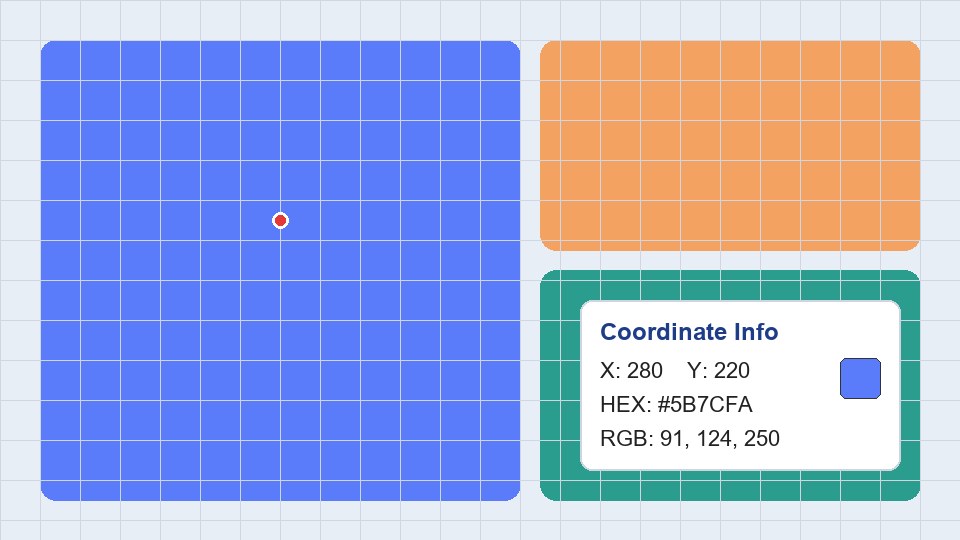
Pick pixel coordinates and colors from any image—free, private, in your browser.
Try Image Coordinate PickerWhy image coordinates and pixel colors matter
Image coordinates describe a point on a bitmap using an X (horizontal) and Y (vertical) value counted in original pixels, usually from the top-left corner (0, 0). Unlike a rough guess from a resized preview, true pixel coordinates stay valid for coding, design handoff, and image slicing.
Common situations include:
- Hotspot and image-map markup — define clickable regions for HTML
<map>areas or product lookbooks. - UI and game assets — place sprites, hitboxes, or anchors at known X/Y positions.
- Design handoff — tell developers where a badge, button, or crop box should sit on a source PNG.
- Color sampling — copy HEX/RGB/HSL from a logo, wallpaper, or screenshot without opening desktop software.
- Slice and crop planning — measure width/height of the full image while noting points you will cut around.
What the Image Coordinate Picker does
On image-coords.html, you upload an image, then use a full-width preview for comfortable clicking—especially helpful on large screenshots. The tool reads from the image’s native pixel grid, not from a casually scaled display size.
- Live hover readout — move the cursor to preview X, Y, and color before you commit.
- Click to mark — each click drops a marker and appends a row to your coordinate history.
- Color formats — HEX, RGB, and HSL for the sampled pixel, with one-click copy buttons.
- Image size panel — see original width and height next to the point you picked.
- History tools — copy a single row, copy all records, delete one mark, or clear everything.
- Local processing — your file stays on your device; refreshing the page clears the session.
Step-by-step: get coordinates and color from any image
Step 1: Open the tool and upload
Go to image-coords.html. Drag and drop a JPG, PNG, WebP, or GIF onto the upload zone, or click to browse. The preview appears above the Coordinate Info panel so large images get enough width for precise picking.
Step 2: Hover to preview values
Move your mouse over the image. The info panel updates live with:
- X and Y — pixel position on the original image
- Width / Height — full native dimensions
- HEX, RGB, HSL — color of the pixel under the cursor
Use this pass to find the approximate region before you click.
Step 3: Click to record a point
Click when the cursor is on the pixel you need. The tool:
- Places a numbered marker on the preview
- Adds a history row with X, Y, and HEX
- Keeps HEX, RGB, HSL, and the
(X, Y)pair ready to copy
Repeat for as many points as you need—corners of a hotspot, icon centers, multiple brand colors, and so on.
Step 4: Copy what you need
Use the copy buttons beside X, Y, HEX, RGB, HSL, or the combined coordinate pair. For a batch of points, click Copy All to grab every recorded line at once. Delete a mistaken mark from the history table, or use Clear All to reset markers without re-uploading.
Tip: Coordinates always use the original pixel grid. Even if the preview is scaled to fit your screen, X and Y match the true image size shown in Width / Height.
Practical examples
HTML image map: Click the four corners (or polygon vertices) of a region, copy each (X, Y), and paste into an area coords attribute.
CSS badge placement: Sample the X/Y of a logo corner on a 1920×1080 mock, then convert to percentages or fixed offsets in your stylesheet.
Brand color from a PNG: Click a flat area of the logo (avoid anti-aliased edges), copy HEX, and add it to your design tokens.
Sprite sheet anchors: Record the top-left of each frame and note image width/height for atlas metadata.
Bug report clarity: Attach X/Y plus HEX so QA and designers can find the exact UI pixel you mean.
Image Coordinate Picker vs. Get Image Color
ROCKIMG also has Get Image Color. Choose based on your goal:
- Image Coordinate Picker — best when you need both precise X/Y and color, with a click history and on-image markers.
- Get Image Color — focused on sampling colors (including a color history and dominant-color helpers) when position math is secondary.
- Annotate Image — draw arrows and labels on a screenshot when you want a visual mark-up file rather than numeric coordinates.
- Image Splitter — cut a picture into tiles after you have planned slice positions.
Tips for accurate picks
- Prefer flat, solid regions when sampling brand colors; edges mix neighboring pixels through anti-aliasing.
- Remember Y grows downward in standard image coordinates (browser/canvas convention).
- If the design file used a different color profile, HEX may differ slightly from the source app—sample the exported asset you will ship.
- For hotspots, click corners consistently (e.g. always outer inclusive edges) so polygon data stays coherent.
- Use Copy All at the end of a session so you do not lose values when you refresh.
- Upload the full-resolution asset, not a compressed social preview, if pixel numbers must match production.
Privacy and formats
Processing runs in your browser with JavaScript and the Canvas API. ROCKIMG does not store the image on its servers for this tool. Supported uploads include JPG, PNG, WebP, and GIF. Closing or refreshing the page clears markers and history—copy values first if you need them later.
Conclusion
You do not need Photoshop’s eyedropper or a desktop ruler to get image coordinates and pixel color online. ROCKIMG’s Image Coordinate Picker combines live hover values, click markers, HEX/RGB/HSL, and a copyable history—so designers, developers, and creators can hand off exact positions and colors from any image in the browser.
Upload an image and click your first pixel in seconds.
Open Image Coordinate Picker