
How to Apply a CCD Style Filter Online
The CCD style filter is everywhere right now—soft flash portraits, warm yellow casts, visible grain, and that dreamy overexposed look from 90s and early-2000s point-and-shoot cameras. If you want to know how to get a CCD camera look online without buying a vintage digicam, this guide walks you through ROCKIMG's free CCD Style Filter: four presets, six sliders, an optional date stamp, and processing that stays in your browser.
Published on: June 1, 2026

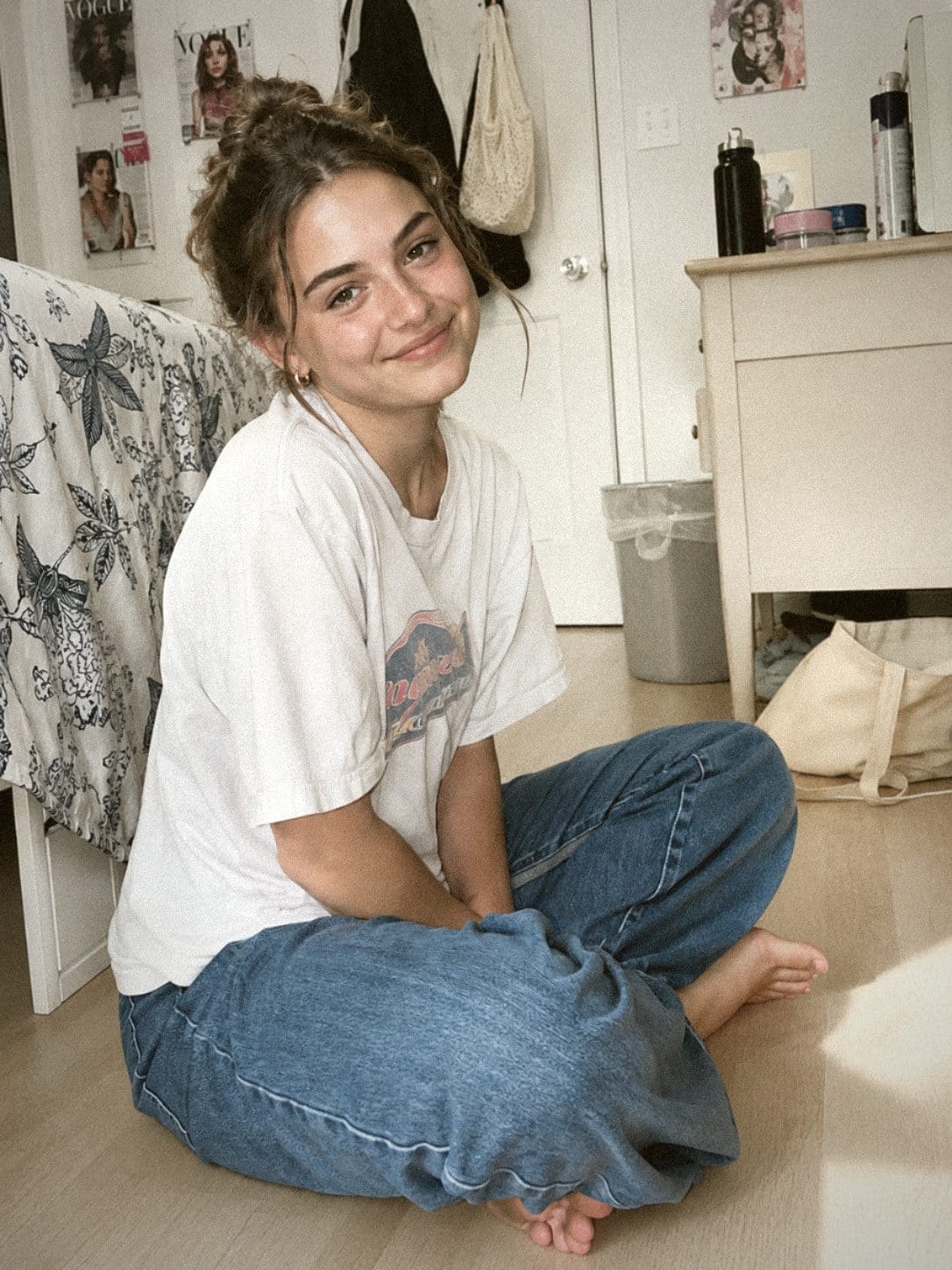
Want to try the look on your own photo right now?
Open the CCD Style FilterWhy use a CCD style filter?
People search for a CCD filter or retro digital camera effect for more than nostalgia. Common reasons include:
- Social posts and stories: the Y2K digicam aesthetic fits Instagram, TikTok, and Pinterest mood boards.
- Portraits with flash: indoor party shots and bathroom-mirror selfies look instantly "era correct" with warm skin and soft highlights.
- Creative edits: pair a CCD look with captions, collages, or meme layouts for a lo-fi, emotional tone.
- Quick vintage color grading: skip heavy desktop apps—get faded film color, vignette, and grain in one pass.
- Privacy-friendly editing: ROCKIMG processes images locally in your browser, so photos are not uploaded to a server.
What makes the CCD camera look?
Early CCD sensors and cheap lenses had limits that became a style. A convincing CCD camera effect usually combines several traits:
- Soft, low-resolution blur instead of crisp HD micro-detail
- Visible grain and sensor noise across the frame
- Warm yellow color cast with cool, bright skin highlights
- Highlights that bloom and gently overexpose toward white
- Muted, faded color with lower saturation—like old print film
- Dark vignette and softened edges, especially in corners
The CCD Style Filter targets all of these in one tool, so you do not have to stack five separate edits.
How to apply a CCD style filter online (step by step)
Here is the full workflow on ccd-style.html—no install, no account, and nothing leaves your device.
Step 1: Upload your photo
Drag and drop an image onto the upload area, or click to choose a file. JPG, PNG, and WebP work well. Brighter photos with visible highlights tend to respond best, because the CCD look leans on soft overexposure.
Step 2: Pick a style preset
Choose one of four starting points:
- Classic CCD: balanced retro digicam—warm, grainy, slightly soft.
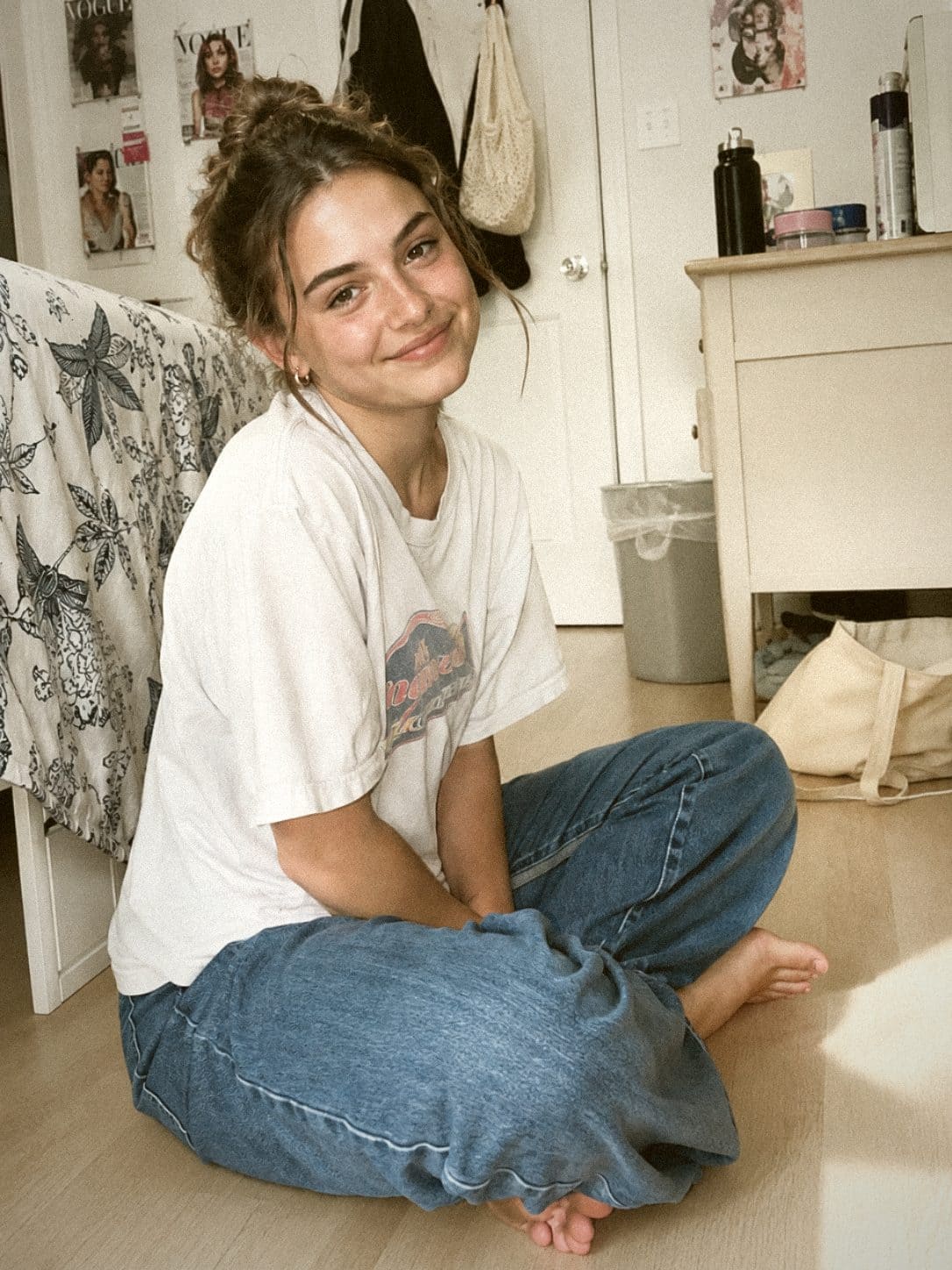
- Warm Yellow: pushes the golden cast for sunset and flash-heavy party vibes.
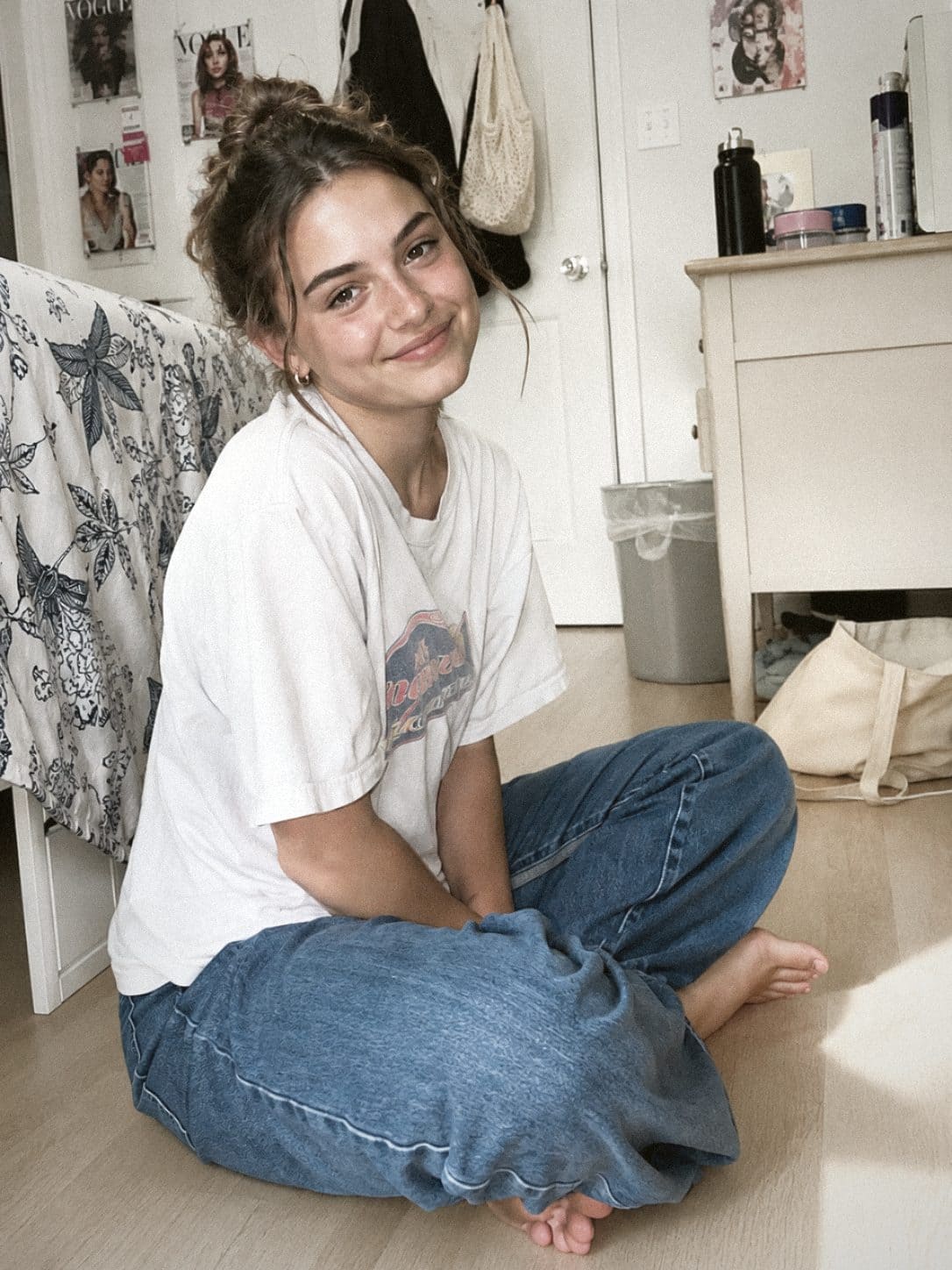
- Cool White: cooler highlights and a cleaner, brighter skin tone.
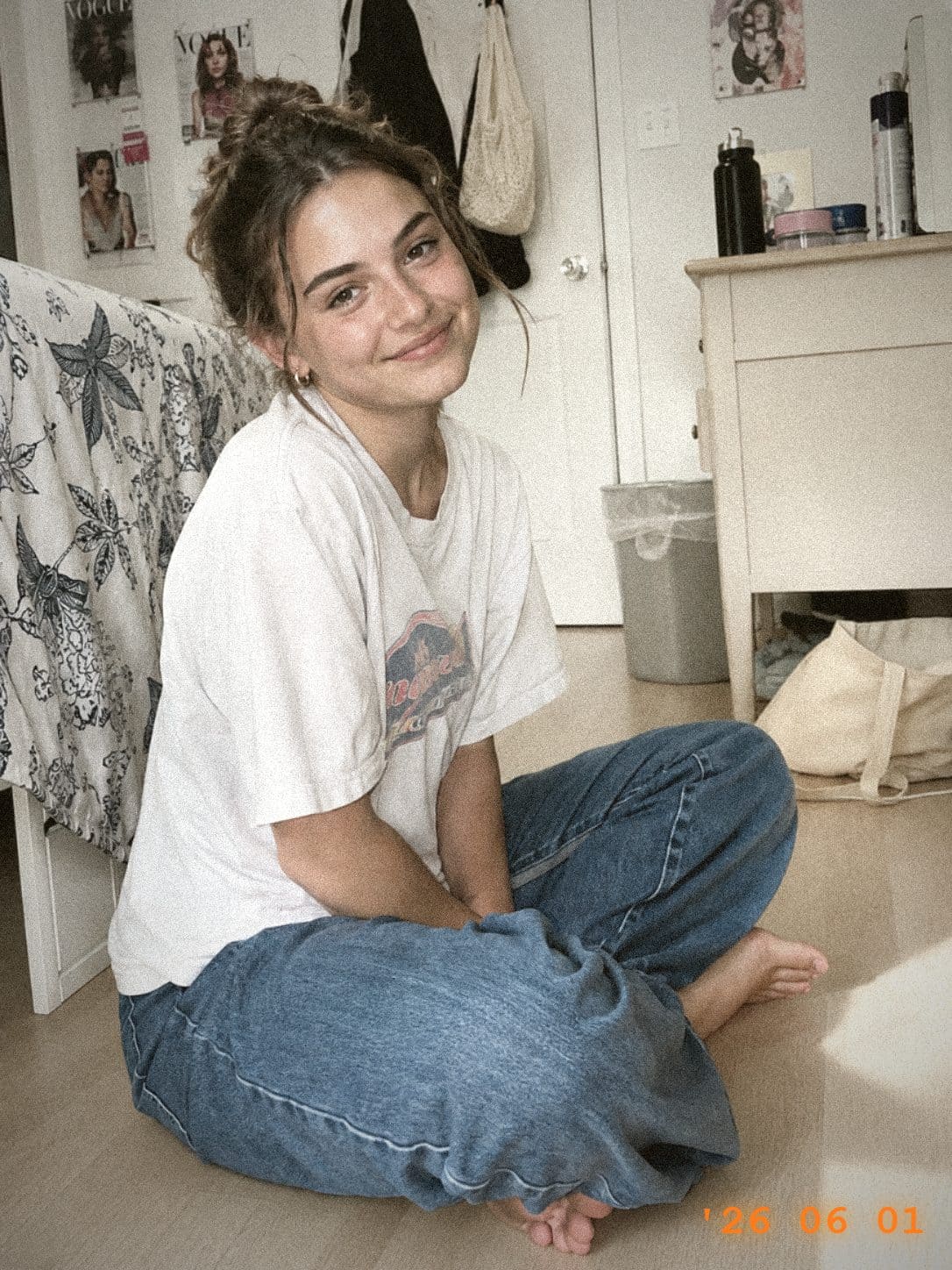
- Vintage Film: more faded color and a muted, print-film mood.
On the tool page you can click any sample thumbnail to load the demo photo with that preset's slider values—a fast way to see how each style behaves before using your own image.
Step 3: Fine-tune the sliders
After picking a preset, adjust six controls:
- Warm Tone: adds or reduces the yellow-orange cast.
- Faded Color: lowers saturation for that washed-out retro grade.
- Soft Glow: blooms bright areas toward white—key for the "flash on face" CCD feel.
- Grain: adds sensor noise and texture across the image.
- Low-Res Blur: softens fine detail like an old 2-megapixel sensor.
- Vignette: darkens edges for a compact-camera frame.
Step 4: Add a retro date stamp (optional)
Toggle Add retro date stamp for the classic orange corner timestamp seen on early digital cameras. It is a small touch that sells the illusion on social crops.
Step 5: Apply and download
Click Apply CCD Style, preview the result, then download your retro photo as a JPG.
Tip: Start from a preset, then nudge one slider at a time. If the image feels too muddy, lower blur and grain slightly; if it feels too modern, raise soft glow and warm tone.
Which preset should you choose?
Classic CCD — best all-round choice for everyday portraits and street snapshots.
Warm Yellow — golden hour, beach trips, and warm indoor flash.
Cool White — brighter, cleaner skin when you want less yellow in the grade.
Vintage Film — mood boards, zine layouts, and faded album-cover energy.
More preset examples
Tips for the best CCD filter results
- Use photos with some highlight detail—flat, underexposed shots have less room for the signature glow.
- Portraits and indoor flash photos match the aesthetic especially well.
- Increase grain and low-res blur together for a stronger "cheap digicam" feel.
- Lower warm tone if skin looks too orange; raise it for sunset and party scenes.
- Keep your original file—like any filter, the CCD look is easier to add than to remove afterward.
- Want extra grit without changing color? Try layering with Add Noise on a copy for experimentation.
- For a harsher "broken camera" look instead of dreamy CCD, see the Low Quality Image Maker.
Turn any photo into a retro CCD camera look—free, in your browser.
Open the CCD Style Filter