
How to Make Perler Bead Patterns Online
Perler beads (also called fuse beads or melty beads) turn simple pixel grids into magnets, keychains, coasters, and wall art. The hard part is not placing beads on a pegboard—it is turning a photo into a pattern with real brand colors and knowing how many beads to buy. ROCKIMG’s free Perler Bead Pattern Maker does that in your browser: upload a picture, match colors to Perler, Hama, or Artkal palettes, and get a printable pattern plus a shopping list. No signup, no install, and your images never leave your device.
Published on: May 17, 2026
Ready to build your first pattern?
Open the Perler Bead Pattern MakerWhat are Perler bead patterns—and why make them online?
A Perler bead pattern is a grid where every square represents one bead on a pegboard. Crafters follow the chart to place colors, iron the design, and peel it off. Patterns can be hand-drawn, copied from games, or generated from photos.
Making patterns online saves hours compared to guessing colors by eye:
- Accurate brand colors — photos contain millions of RGB values; fuse beads come in fixed catalog colors. A good converter picks the closest real bead for each cell.
- Bead counts — you see exactly how many of each color code you need before shopping.
- Instant previews — adjust grid size, brightness, and contrast without redrawing.
- Privacy — browser-based tools like ROCKIMG process images locally, which matters for family photos and custom art.
Why use ROCKIMG’s Perler Bead Pattern Maker?
The Perler Bead Pattern Maker is built for real craft workflows—not just pretty thumbnails. Here is what it offers:
- Delta E color matching — each pixel is mapped to the closest color in the selected palette using perceptual color distance (more accurate than simple RGB distance).
- Three major palettes — switch between Perler, Hama, and Artkal so your chart matches the beads you actually own.
- Round bead preview — the output looks like beads on a pegboard, not flat squares, so you can judge the final look.
- Adjustable grid — set width and height from 10×10 to 100×100 to balance detail and build time.
- Background removal — optional light-background removal for cleaner patterns and more accurate counts on white-backdrop photos.
- Color chart with counts — a sortable table lists color code, name, quantity, and percentage of the design.
- Download and print the chart — export the color list as CSV for spreadsheets, or print the chart for your craft table.
- PNG pattern download — save the full bead preview image to reference on a tablet or print as a poster.
- 100% free, no account — open the page and start; everything runs in your browser.
Who is this tool for?
- Beginners turning a favorite character or pet photo into a first project.
- Parents and teachers planning classroom or party crafts with predictable supply lists.
- Experienced beaders prototyping grid sizes before committing to a large board.
- Pixel and fan artists converting artwork into fuse-bead versions for gifts or crafts (respect copyright on source images).
How to make Perler bead patterns online: step by step
Follow these steps on perler-bead-pattern-maker.html. The whole flow usually takes under two minutes once you have a photo ready.
Step 1: Upload your image
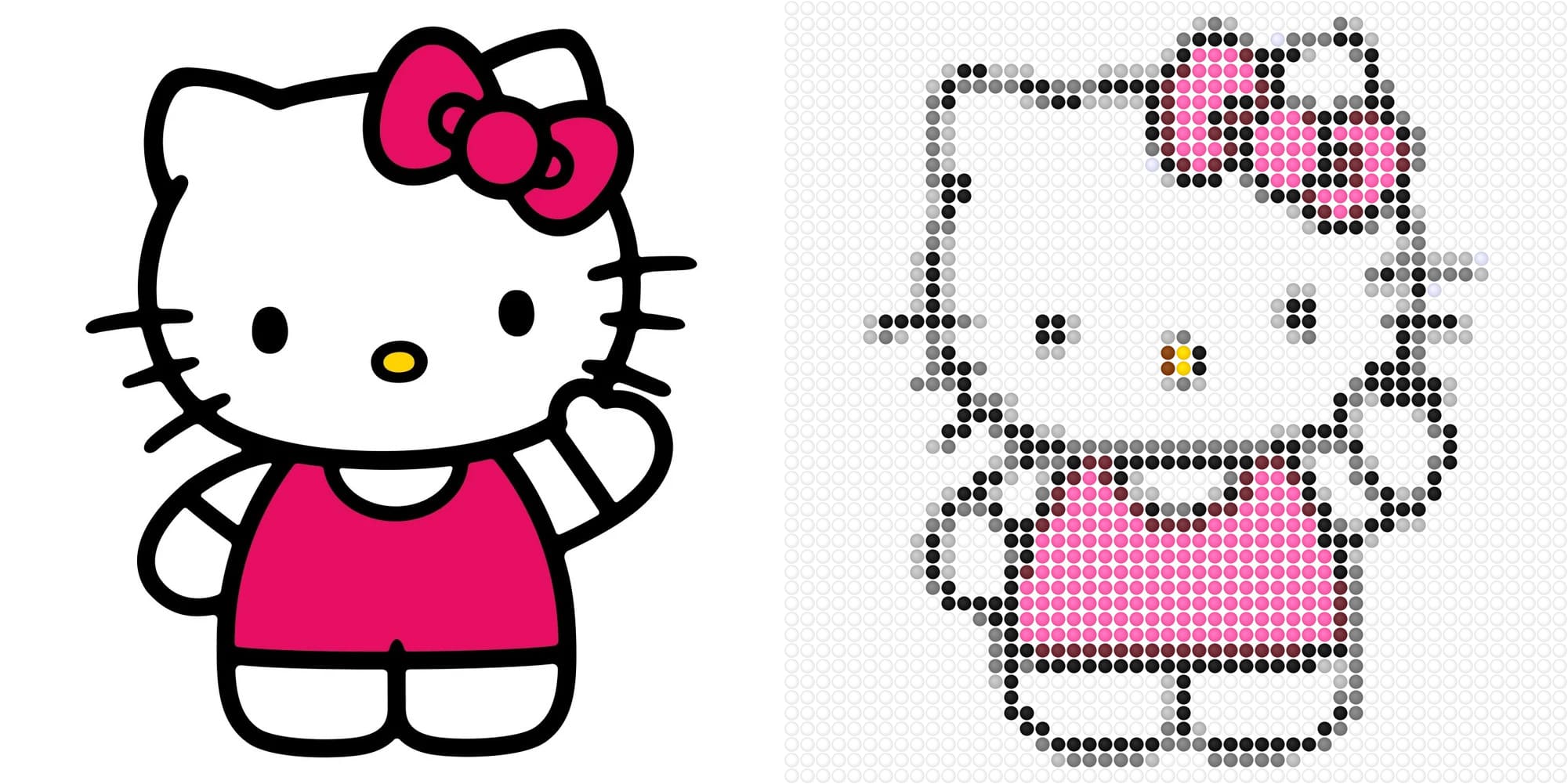
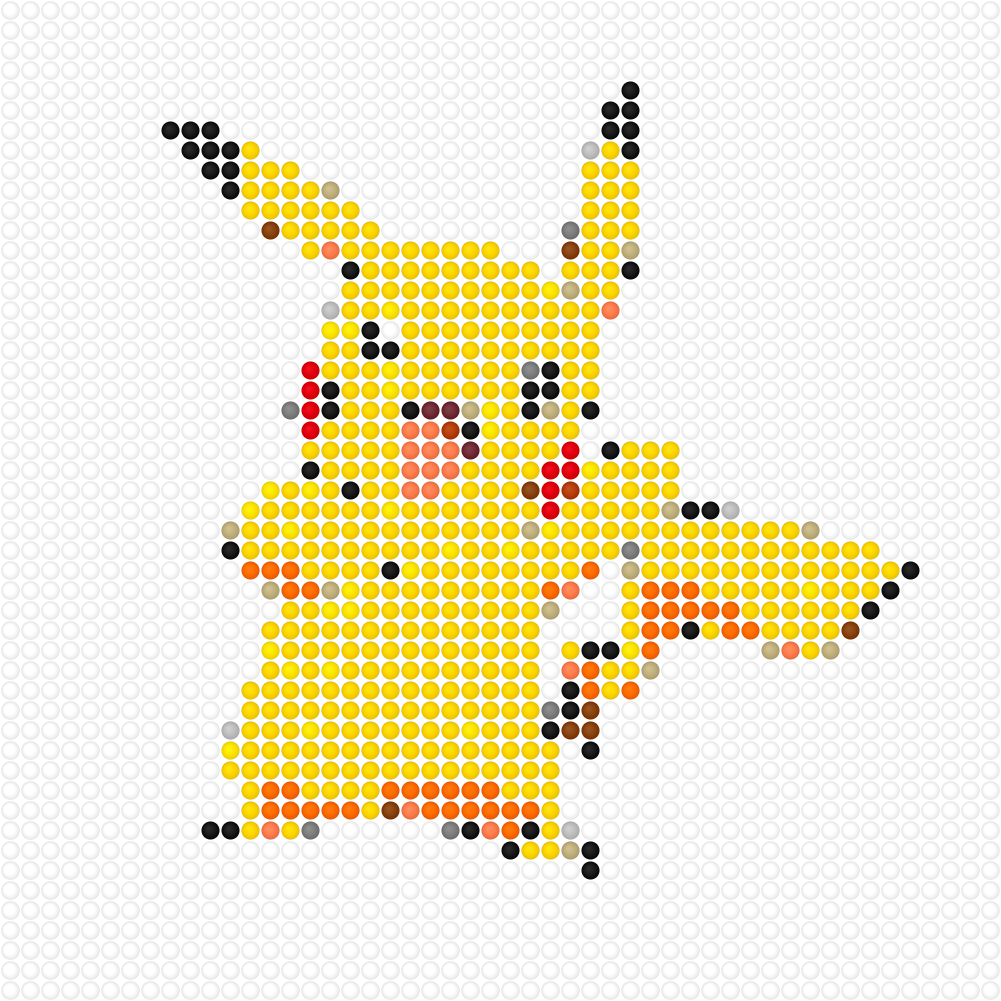
Drag and drop a JPG, PNG, or WebP file onto the upload area, or click to browse. No photo handy? Click one of the sample images (Hello Kitty, flower, Pikachu, or cat) to see how the tool works instantly.
For best results, start with a clear image: cartoons, logos, and high-contrast subjects convert more cleanly than busy photographs.
Step 2: Choose your bead brand and grid size
Under Bead Pattern Settings:
- Select Perler, Hama, or Artkal from the palette menu so color codes match your supplies.
- Set grid width and grid height (10–100 beads each). A 40×40 or 50×50 grid is a sweet spot for beginners—enough detail without an overwhelming bead count.
The tool preserves your image aspect ratio inside the grid, so portraits stay tall and landscapes stay wide.
Step 3: Tune brightness, contrast, and background
- Use brightness and contrast sliders if the photo looks too dark or muddy. Slightly higher contrast often reduces the number of similar shades and makes the pattern easier to read.
- Enable Remove light background when your subject sits on white or very light paper—those cells are skipped so they do not inflate your bead totals.
Step 4: Generate the pattern
Click Generate Pattern. Within a moment you will see:
- Your original image (for comparison).
- The bead pattern preview with round, shaded beads.
- The bead count by color table with swatches, codes, names, counts, and percentages.
Changing palette, grid size, or sliders after a result will regenerate the pattern—handy for A/B testing a smaller grid before you iron.
Step 5: Download, print, and craft
- Download Pattern — saves the bead preview as a PNG for your phone, tablet, or printer.
- Download color chart — exports a CSV (opens in Excel or Google Sheets) with color codes and quantities—ideal for shopping lists.
- Print color chart — sends only the bead-count table to your printer for a paper reference at the ironing board.
Place beads on a pegboard following the grid, iron according to your bead brand instructions, and enjoy the finished piece.
Tip: Sort beads by color code before you start. The CSV chart sorts colors by count (most used first), which helps you grab the high-volume colors first.
Tips for better Perler patterns
- Simplify the source — crop tight on the subject; less background means fewer stray colors.
- Start smaller — test at 30×30 or 40×40, then scale up once you like the palette.
- Match your inventory — if you only own Perler beads, keep the Perler palette selected so codes on the chart match your bins.
- Fewer colors, cleaner look — bump contrast slightly before generating; many similar mid-tones often merge visually when ironed anyway.
- Compare palettes — the same photo can look different on Hama vs. Artkal; regenerate with another brand if a key color is missing from your stash.
Perler vs. Hama vs. Artkal: which palette should you pick?
All three brands use the same pegboard grid spacing, but color codes and shades differ. The ROCKIMG tool includes curated palettes for each brand so your chart reflects real SKU-style codes (for example Perler 80-19005 for red, or Hama H03).
If you mix brands on one project, colors may not match perfectly when ironed. For consistent results, generate the pattern with the palette you plan to buy—or generate twice and compare.
Privacy and limitations
- Local processing — your photo is read and converted in the browser; it is not uploaded to ROCKIMG servers.
- Supported formats — JPG, PNG, and WebP inputs; pattern output is PNG; color chart export is CSV.
- Approximation — any photo-to-bead converter maps continuous colors to a limited palette. Very fine gradients may band into discrete shades—that is normal for fuse-bead art.
- Large grids — a 100×100 design can mean up to 10,000 beads; check the total in the summary line before you shop.
- Copyright — only use photos and artwork you have rights to reproduce for personal or permitted commercial use.
Related ROCKIMG tools
If you enjoy grid-based art, try these companions:
- Image to Pixel Art — square pixels without bead color limits; great for digital art references.
- Pictures to Draw — simplified outlines for hand sketching.
- Image Color Picker — sample exact hex values from any reference image.
Frequently asked questions
How do I make a Perler bead pattern from a photo for free?
Open the Perler Bead Pattern Maker, upload your image, choose a brand palette and grid size, click Generate Pattern, then download the PNG and color chart. No payment or account is required.
What grid size should I use?
For icons and simple characters, 29×29 or 40×40 works well. For more detail (faces, text), try 50×50 to 60×60. Very large grids are impressive but take significantly longer to build and iron.
Why does my pattern use colors I do not own?
The tool always picks the closest catalog color per cell. If the match feels off, try another palette brand, increase contrast, or reduce grid size so fewer subtle shades appear.
Can I use this on a phone or tablet?
Yes, in a modern mobile browser. Large images and very big grids are smoother on desktop, but uploading, generating, and downloading work on phones too.
Is the color chart the same as a Perler “pattern paper”?
Yes in purpose: it lists each color and how many beads you need. You can print it or keep the CSV on your phone while shopping online or in craft stores.
Conclusion
Learning how to make Perler bead patterns online does not require Photoshop or manual spreadsheets. With accurate palette matching, live previews, bead counts, and export options, ROCKIMG’s pattern maker turns inspiration into a pegboard-ready plan in minutes. Upload a photo, generate, download your chart, and start beading.
Make your first fuse-bead pattern now.
Try the Perler Bead Pattern MakerFurther reading
For ideas on using Perler beads as a screen-free, hands-on family activity—and why this craft is great for kids' focus and fine motor skills—see this external guide: Fun Perler Bead Crafts: Enjoy Quality Parent-Child Time with Kids.